Finestra
A window into your servers.
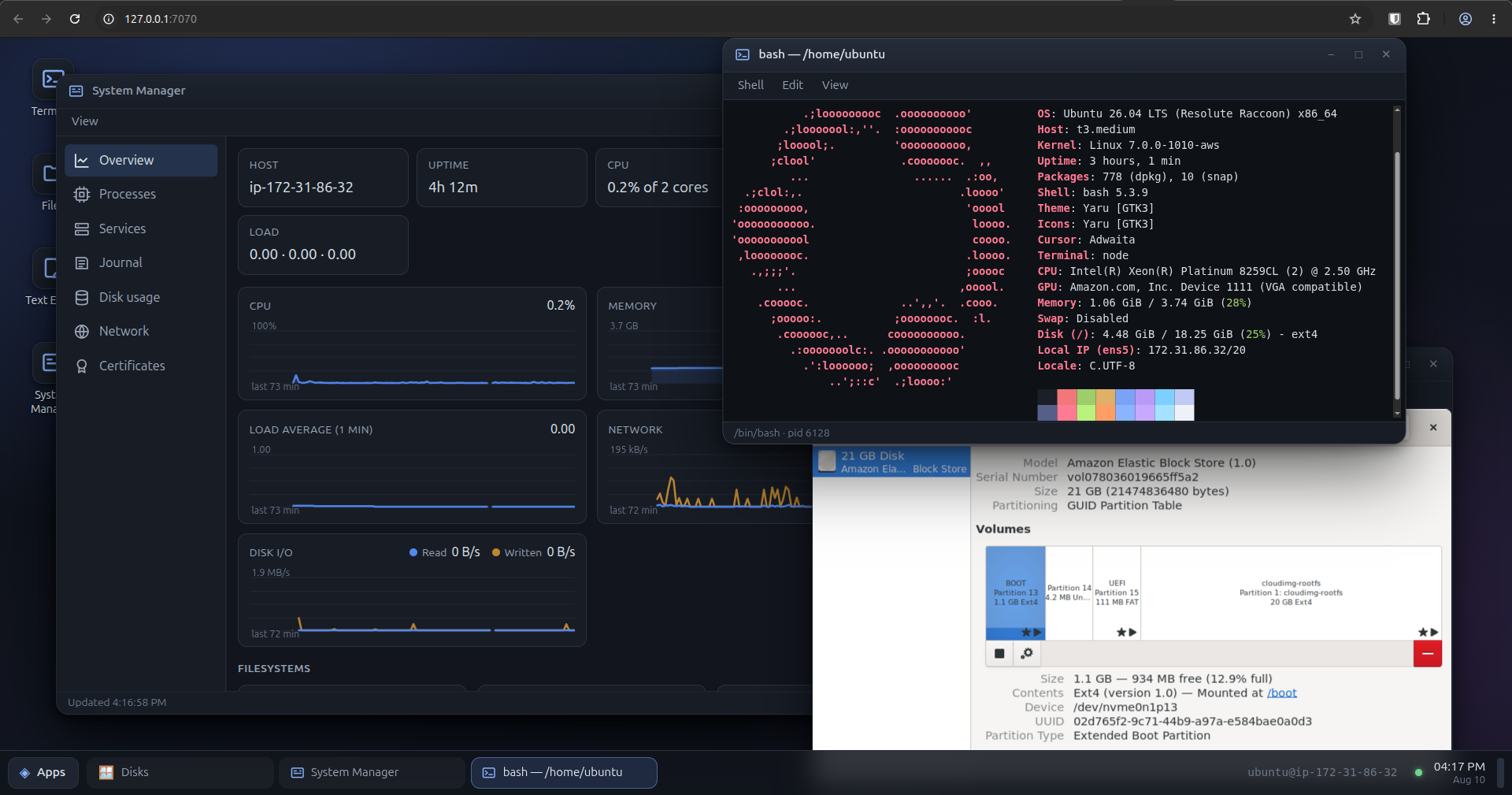
A full desktop for a headless Linux server, in your browser. From the console to desktop applications.
Install
On the server:
$ curl -fsSL BASE/get.sh | sudo bash
The installer verifies the release, sets up a systemd service and prints the
URL to open. It asks which account the desktop runs as; the default is yours.
Pass --system-account for a read-only install:
curl -fsSL BASE/get.sh | sudo bash -s -- --system-account
libwayland-server and
libxkbcommon. The installer prints the command for your
distribution.
Connect
It listens on 127.0.0.1:7070. Forward the port over SSH and open
the URL the installer printed:
ssh -L 7070:127.0.0.1:7070 you@server
The tunnel and a token are the access control. The desktop can do whatever
your account can do on that machine. On a network you control,
configure.sh --bind lets it listen directly.
What you get
Terminal
A shell on a real PTY. It survives a dropped connection and reopens where it was, and a shell can be kept running while you are away.
Files
Browse, rename, upload and download. A file opens in the app that handles it.
System Manager
Processes, systemd units, the journal, disks, listening ports and certificates, read live from the machine.
Applications*
Linux desktop applications in their own windows, through a Wayland compositor built for this. Firefox, Chrome, VS Code, the GNOME tools.
Several servers
One desktop over several servers, one connection each. The servers do not know about each other.
Session restore
Windows, positions, stacking and focus survive a reload. Terminals reconnect to their shells.
* Tested with applications from distribution packages. Snaps are experimental.
Release notes
Newest first. Rendered from CHANGELOG.md.
0.4.12026-10-25
Firefox at its right size on HiDPI screens. 0.4.0 showed Firefox at twice its size on a 2× screen, the whole interface overflowing its window. Firefox tells a compositor the size of the surface it draws into through the viewporter protocol and no other way, and the compositor did not offer it; 0.4.0 began trusting what each window said about its own scale, and Firefox had said nothing. The compositor offers viewporter now. Nothing changes for applications that were already right, X11 ones included. Update if you use Firefox, or anything else built on its toolkit, from a laptop or phone with a high-density screen.
0.4.02026-10-25
X11 applications run. Programs that speak X11 rather than Wayland — DOSBox-X and the emulators and games built on SDL, anything written in Tk, Java and Wine programs, the old X tools — open in a window like any other. Each session starts an X server of its own the moment an X client asks for one, and the compositor is its window manager: windows are sized and named as the application asks, a transient window is a dialog of its parent, a menu is a menu over the window it belongs to, copy and paste work both ways, and the ✕ asks the application to close. Nothing is started for applications that never ask. It needs Xwayland on the server; the installer says whether it is there and which package provides it, and an X11 application started without it says so plainly. libxcb1 is a new runtime dependency, in the installer's list. WD_XWAYLAND=0 turns the feature off.
Two limits to know about. An X window is drawn at 1× and magnified on a 2× screen. And there is no pointer capture yet, so an emulator or a game that grabs the mouse to read its movement — DOSBox with a Windows guest, first-person views — sees it drift or stick to an edge; that is the next item.
Found in the first afternoon of using it, and fixed before this release: the mouse pointer vanished over windows that set no cursor of their own, and over LibreOffice after its splash screen; DOSBox-X and the shell resized each other for as long as Windows took to boot; and clicks past the size the window had at launch stopped at that edge.
An application is not its first window. When an application destroys its window, the shell keeps the window a few seconds for the next one instead of ending the session. LibreOffice's splash screen, a browser that opens each site in a fresh process, and anything else that replaces its window used to open or not depending on a race, and the browser could never reach its second page. An application that quits from its own menu is no longer reported as having failed to start.
A helper's dialog no longer stays as the application's window. A process that exited with a window still up — zenity asking a question for DOSBox-X, a crash — was never reported closed, and the shell kept its last picture as the window.
A menu opened from a dialog is clickable. Drop-downs opened from a dialog were drawn under the dialog's backdrop, where nothing could reach them, for Wayland and X11 applications alike.
0.3.162026-10-21
- What you leave running stays running. A terminal or a native application whose browser went away was kept for an hour and then closed, unless the shell had been marked *Keep running while I am away*; the ones lost were the ones nobody remembered to mark, and on a poor connection that was most of them. Both are now kept until their window is closed or the service restarts, like windows on a real desktop.
WD_TERMINAL_GRACEandWD_WINDOW_GRACEput a limit back, in seconds;0closes at once, as before 0.3.7. The *Keep running* item appears only under a limit. - Applications left running are picked up. Opening the desktop from another browser, or after clearing the saved session, opens a window onto every native application still running on the server, as it already did for shells. Before, such an application ran on with no window and no way to reach or close it.
- A slow connection is shown the newest picture, not every one. While a window's frame was still on its way to the browser, every further redraw the application made was queued behind it; a page loading in Firefox over a slow link was dozens of frames, each out of date on arrival. One frame per window is now in flight at a time, and what the application draws meanwhile goes out once, as a single frame, when the browser has the last.
- A terminal no longer inherits the service's own settings. A shell opened in the desktop could see how the service was configured (
WD_PORT,WD_NO_AUTH, ...), and anything started from it that reads those settings — a second copy of Finestra, its test suite — quietly adopted them. Shells and applications now start without them.
0.3.152026-10-21
- Open and Save dialogs work in Firefox and other snaps, on every machine. 0.3.14 said this worked; it worked only on a machine with no desktop portal of its own. On any machine with a desktop login, a snap's request went to that desktop's portal, and the dialog opened on the physical screen. A snap now reaches the session bus through a socket the desktop provides, and its file-chooser requests are answered there. Verified with the Firefox snap on a machine whose own portal owns the bus.
- Files chosen in a snap are handed over as paths. A snap reads them through its home interface: files in hidden directories or outside the home directory are not readable to it.
- An application survives losing the browser's connection. The connection dropping used to close the application at once; on a link that drops for a second every few minutes, nothing with a slow start was ever usable. The application now keeps running for an hour after the connection goes, and the window picks it back up when the connection is back, or when the page is reloaded.
WD_WINDOW_GRACEchanges the hour, and0restores the old behaviour. Closing the window still closes the application. - A slow connection no longer freezes the whole desktop, and no longer gets cut off. A window's picture went to the browser as one message, and the terminal, the keyboard and the server's own keepalive all waited behind it; on a slow link the keepalive gave up and the server dropped the connection. Pictures now travel in small pieces with everything else allowed in between, the server sends no further ahead than the browser has confirmed receiving, and a connection that is still taking data is never mistaken for a dead one.
0.3.142026-10-20
- Open and Save dialogs in confined applications, on a headless server. A snap asks the desktop portal for its file dialog, and a headless server has no portal, so the dialog never appeared. The server now answers the file-chooser portal itself: the dialog is drawn by the desktop over the application's window and browses the server's files. Open, Save, multiple selection and folder choice are covered. Other portals (settings, screenshots, notifications) are still absent. This release claimed the dialogs worked in Firefox; on a machine with a desktop session they did not. Fixed in 0.3.15.
- An application already running on the machine's own screen is named. Launching Firefox while a copy was open on the server's physical desktop ended with "started and exited without opening a window". It now says the application is already running outside this desktop, with its pid.
- System Manager, Processes. Arriving from Network or the Journal left a single pid in the filter with no obvious way back; a "Show all" button appears whenever a filter is set. The detail panel can be closed with ✕, Escape or a second click. When the selected process ends, the panel closes and the full list returns. Terminate and Kill now say what they do, in the buttons, the confirmation and the menu, and a process still running five seconds after Terminate gets a note pointing at Kill.
0.3.132026-10-20
- Firefox and Thunderbird work. Both draw their interface in a Wayland subsurface, which the compositor did not support: the window opened and stayed blank. Subsurfaces now reach the browser as their own canvases.
- Scaled (HiDPI) screens work. At 150%, 166% or 200%, applications were asked for twice their size and clicks landed in the wrong place. Sizes and clicks now use the application's own coordinates, and the window paints at the screen's density.
- An application launched without a size fills its window, instead of opening at the 1920×1080 the compositor used to advertise. A window the application resizes itself is followed until you resize it.
- Menus open in the right place at any zoom.
0.3.102026-10-11
- The access token can be changed from Settings. Settings → Access lists every connected desktop (browser, address, since when) and can issue a new token. Old links stop working at once. Desktops connected at that moment receive the new token and stay in; a second button signs them out too. A token set with
WD_TOKENcannot be changed there, and Settings says so. - The token no longer lives in the page. It was kept in
localStorage, where any script in the page could read it. It is now exchanged for an HttpOnly cookie on first load; a copy left by an earlier version is removed. A browser that blocks cookies for the address is told so. - A desktop whose token changed while it was away is told what happened and what to open, instead of reconnecting for ever.
0.3.92026-10-11
- Maintenance only. ws 8.22.0 and refreshed build tools. No visible change and no security fix.
0.3.82026-09-25
- Runs on 64-bit ARM. An arm64 build sits beside the x86_64 one and the installer picks the right one: Graviton and other ARM servers, and Raspberry Pi 4 and 5 on the 64-bit Raspberry Pi OS. The 32-bit Raspberry Pi OS is refused with a message, including a 64-bit kernel over a 32-bit system. Many closed-source applications have no ARM build for Linux.
- Native applications start on Debian 12, Rocky 9 and Amazon Linux 2023. The compositor needed a newer C library than those have and failed without a message. The installer now accepts glibc 2.34 and newer.
0.3.72026-09-07
- A terminal survives losing its browser. Close the tab or drop the connection: the shell keeps running, and the terminal picks it up on reconnect or reload. A shell nobody returns to is closed after an hour;
WD_TERMINAL_GRACEchanges that, and0restores the old behaviour. Closing the window or restarting the service still ends the shell. - A terminal can be kept indefinitely. *Shell → Keep running while I am away* exempts it from the hour. Opening the desktop later brings up a terminal for every shell still running; *Shell → Pick up a terminal* lists the rest.
- The terminal moved to xterm.js 6. No intended change in behaviour. The build tooling moved to TypeScript 7 and Vite 8.
0.3.62026-08-24
- VS Code and other Electron apps start. The
codiumcommand exits as soon as it has started the editor in the background, and the compositor read that as the application closing. Sessions now last as long as something is connected to the display. Electron apps also look for X11 first; every launch now points them at Wayland. - Pasting text copied outside the desktop into the terminal works again. Broken in 0.3.5.
- An app that exits right after starting is reported as such, instead of as never having started.
- Closing a window cannot leave the app running. Apps started through a launcher are now stopped by their display connection, however they were started.
0.3.52026-08-20
- Ctrl+Shift+V in the terminal pasted twice. Fixed.
- Pasting into the terminal is a bracketed paste, so text pasted into
vimornanoarrives as it was, not auto-indented. - Desktop icon labels are readable under the light theme. The theme now changes the wallpaper with it, and labels take their colour from the wallpaper.
- Two more light wallpapers: *Linen* and *Horizon*.
- The desktop's right-click menu no longer offers Settings twice. Apps with a single window are not offered as "New …".
0.3.42026-08-20
- Copy and paste work between the desktop's own windows again. Browsers share the clipboard only with https pages, and the desktop is http behind an SSH tunnel. The desktop now keeps its own clipboard: every copy goes there and every paste reads it.
- Copies also reach your own machine's clipboard over plain http, through the older copy path browsers still allow. Pasting in from your machine works as before. Where the desktop cannot reach your clipboard, it says so once.
- TLS in front of it still gets the browser's own clipboard, with no fallbacks.
0.3.32026-08-18
- Installs on Fedora, Rocky, RHEL and other systems with SELinux enforcing. The service used to restart every two seconds with
Permission denied ... status=203/EXECon a file that ran fine from a shell: files unpacked under/tmpcarried a temporary-file label into/opt. The installer now runsrestorecon. Installing 0.3.3 over 0.3.2 fixes it. - Updates on those systems no longer roll themselves back. The updater inside 0.3.2 is the old one, so install the 0.3.3 tarball directly; updates after that work.
- Nothing changes on Ubuntu, Debian or Amazon Linux 2023.
0.3.22026-08-13
- It can listen on your network, not only on loopback.
configure.sh --bind 0.0.0.0answers everywhere,--bind <address>on one address,--no-tokenremoves the login, and--bind local --tokenputs it back. The choice is written into the unit and survives upgrades. The same flags work oninstall.shand the one-liner. The defaults are unchanged. It is plain HTTP: put TLS in front of it before it faces anything untrusted. - Binding one VPN address fails with
EADDRNOTAVAILif the service starts before the tunnel.configure.shwarns when no interface has the address. For a tailnet, bind everything or usetailscale serveon loopback. - Updates no longer roll back on an opened install. The health check asks the address the service is on, not loopback.
- A
WD_HOSTdrop-in fromsystemctl editis still honoured, andconfigure.shreports what is in force.
0.3.12026-08-13
- Windows are 25px shorter. An application's menus sit behind one ☰ button next to minimize, maximize and close.
0.3.02026-08-12
Browsers run. Chrome, Chromium and browsers built on them open, draw, take input and browse. Five faults fixed:
- Chromium defaults to X11 and aborted before reaching Wayland. It is now told the platform on the command line of that one launch.
- The compositor advertised a zero-pixel screen when a window chose its own size. Chrome died on it.
- Applications were started with SIGTERM blocked and with inherited file descriptors, so closing always killed them outright.
- Closing a window asks the application to close and waits for it, so browsers no longer leave a lock file behind. A second click on ✕ forces it.
- Reloading the tab relaunched an application while the previous copy was still dying. A launch now waits for it to be gone.
When something does not start, it says why, quoting the application's error output. The "running in your desktop session" explanation is offered only on machines that have one.
0.2.32026-08-12
- Snap applications are marked in the applications window, with a note on what that means.
- The download page says snaps are experimental;
docs/wayland.mdrecords what works.
0.2.22026-08-11
- Snaps start on a packaged install: the session bus is derived from the runtime directory.
- The text editor no longer draws a focus ring across its text area.
- Publishing refuses to overwrite a version already released from a different build.
0.2.12026-08-11
- The installer no longer fetches two libraries at install time, and says what to install instead.
- The licence is back in the install tree.
- The site counts what it served without the product reporting anything.
0.2.02026-08-11
First public release: the desktop, the terminal, the file manager, system and service management, Linux GUI applications through a Wayland compositor, session restore, and a one-command install.
Operating it
sudo systemctl status finestra              # is it up
journalctl -u finestra -f                    # follow its logs
sudo /opt/finestra/current/update.sh <tarball>    # upgrade in place
sudo /opt/finestra/current/update.sh --rollback   # undo a bad upgrade
Account. configure.sh --show prints what it runs
as; configure.sh asks again. The token and the state move with it.
sudo /opt/finestra/current/configure.sh --show
sudo /opt/finestra/current/configure.sh
Source
The source is on GitHub.
Everything the browser can reach is in server/src/services/. To
build and run it with Node 20 or newer:
sudo apt install -y build-essential pkg-config libwayland-dev libxkbcommon-dev zlib1g-dev
git clone https://github.com/carlosbravoa/finestra.git
cd finestra
npm install && npm run build
make -C compositor            # the Wayland compositor, for desktop applications
npm start                     # 127.0.0.1:7070, prints a URL with a token
This runs it in the foreground as you, without installing a service.