What Finestra is
A desktop environment that runs in a browser tab and drives a headless Linux server — a real PTY, a file manager, a system manager, and native Linux applications drawn on the server.
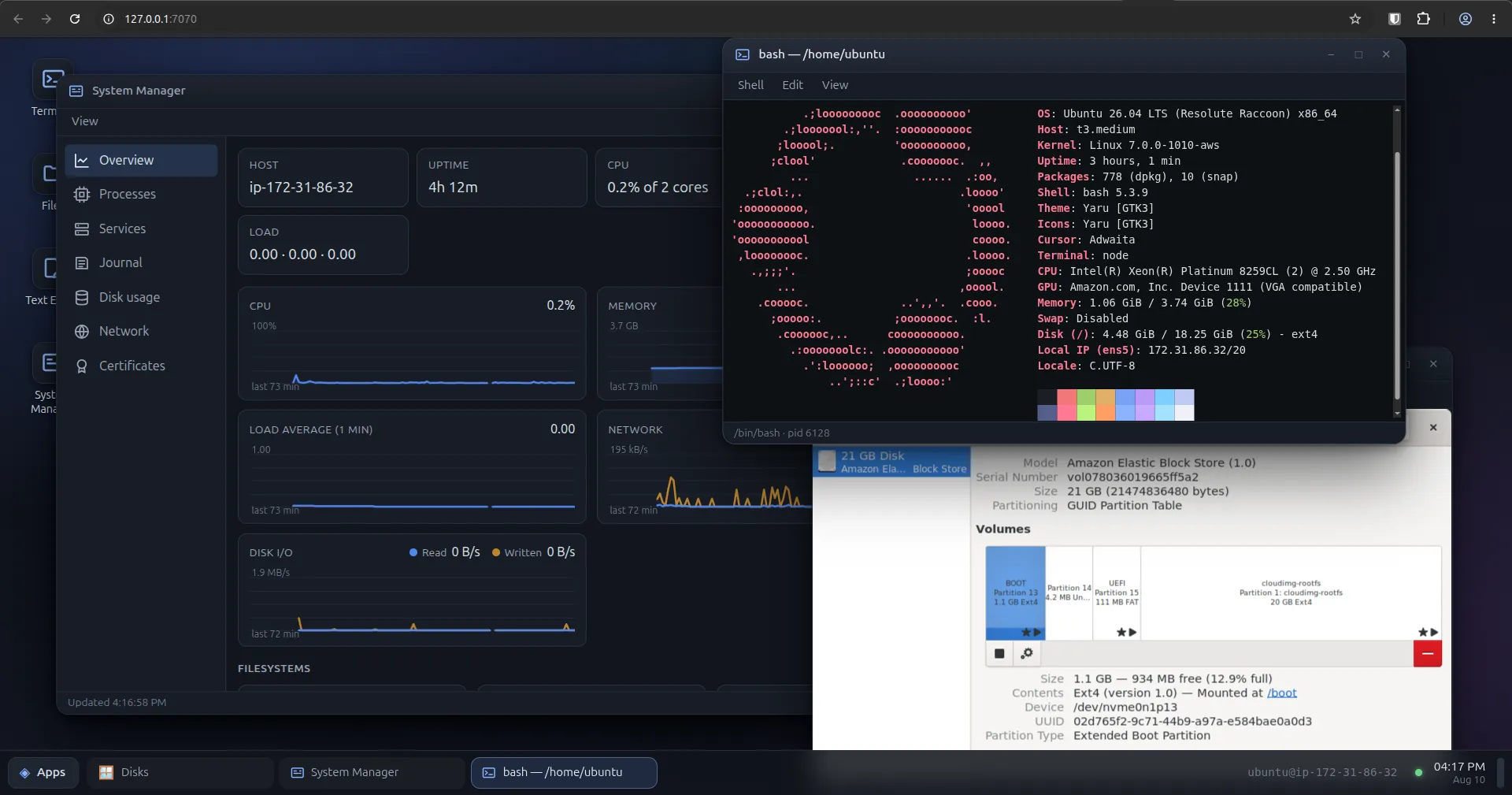
Finestra is Italian for window. It is a desktop environment that runs in your browser and drives a headless Linux server: windows, a taskbar, icons, context menus, a terminal on a real PTY, a file manager, a text editor, a system manager for processes, services, disks, ports and the journal — and real Linux GUI applications, drawn on the server and rendered in a window.
The screenshot above is a headless EC2 instance. There is no display attached to that machine and no desktop installed on it in the usual sense. GNOME Disks is an ordinary application from a distribution package, running on the server, drawn by a Wayland compositor written for this, and shown in a browser tab.
The gap it fills
Between “SSH in and read journalctl” and “install a full desktop plus a VNC
server and open a port for it” there is nothing much. The first is where most
server work actually happens and it is fine, right up to the moment you want to
see two things at once, or drag a file somewhere, or use a tool that only ever
shipped a GUI. The second answers that by turning a server into a workstation:
a display stack, a session manager, a login screen, and a new listening port
that now has to be defended.
Finestra takes the first one and gives it windows. The machine stays headless. Nothing new listens on the network. You keep the SSH you already have.
What is actually in it
- Terminal — a real PTY on the host. Reopens where you left it, and only asks before closing when something is still running.
- Files — browse, rename, upload, download. Double-click opens whichever app handles that file.
- System Manager — processes, systemd units, the journal, disks, listening
ports and certificates, live, read from
/procandjournalctlrather than from an agent that keeps its own copy. - Native applications — real Linux GUI apps in a window, through a Wayland compositor written for this.
- Several machines — one shell, one connection per server. The servers never learn about each other.
- Session restore — windows come back after a reload: geometry, stacking, focus, and where each app was.
Where the security boundary is
This is the part worth highlighting, because it is the core answer to decide whether any of this is a good idea.
Finestra listens by default on 127.0.0.1:7070 and nothing else. There is no port to open,
and no firewall rule to write. You reach it by a connection that you may already have:
SSH and forwarding the port over the SSH (tunnel)
ssh -L 7070:127.0.0.1:7070 you@serverThat tunnel is the authentication boundary. Reaching the desktop means you already got onto the machine with a key you own. The access token in the URL the installer prints is a second latch on top of it, not the thing holding the door.
VPNs or Tailscale networks
Another secure way to connect to your servers, which will require adjusting the default configuration to allow listening in a different ip range.
Some configuration examples:
sudo /opt/finestra/current/configure.sh --bind 0.0.0.0 # answer any incoming connection
sudo /opt/finestra/current/configure.sh --bind 100.83.0.4 # one address only
sudo /opt/finestra/current/configure.sh --bind 0.0.0.0 --no-token # and no login questions at all
The installer asks exactly one question: who the desktop runs as. The default
is you — your home directory, the journal, and sudo, which is the same reach as
the SSH session you are typing the command into and nothing more. The
alternatives are the same account without privilege, or a system account with no
home at all, which gives you read-only observability and nothing else. The answer
is recorded, survives upgrades, and can be changed later.
Installing it
On the server, over SSH or any terminal session:
curl -fsSL https://finestra.dev/get.sh | sudo bashThat downloads the current release, checks it against its published SHA-256, and
runs the installer inside it. No toolchain, no npm, and no third-party apt
repository — the release carries its own Node runtime, so installing Finestra
does not change what else on the machine can be upgraded.
It needs Ubuntu 24.04 or newer on x86_64 - but other OSs are supported too: . The native pieces are built against 24.04’s glibc, and the installer refuses an older machine up front rather than failing later and less clearly.
Supported Operating Systems
| OS | glibc | Support status |
|---|---|---|
| Ubuntu 26.04 LTS | 2.43 | Verified |
| Ubuntu 24.04 LTS | 2.39 | Verified |
| Ubuntu 22.04 LTS | 2.35 | Expected |
| Debian 12 | 2.36 | Verified |
| Debian 13 | 2.41 | Expected |
| RHEL 10 | 2.39 | Expected |
| Rocky Linux 10 | 2.39 | Verified |
| AlmaLinux 10 | 2.39 | Expected |
| Oracle Linux 10 | 2.39 | Expected |
| CentOS Stream 10 | 2.39 | Expected |
| RHEL 9 | 2.34 | Expected |
| Rocky Linux 9 | 2.34 | Verified |
| AlmaLinux 9 | 2.34 | Expected |
| Oracle Linux 9 | 2.34 | Expected |
| CentOS Stream 9 | 2.34 | Expected |
| Fedora 44 | 2.43 | Verified |
| Fedora 43 | 2.42 | Expected |
| Amazon Linux 2023 | 2.34 | Verified |
Other features
Native GUI applications need two shared libraries that most server images do not carry, and the installer does not fetch them for you:
sudo apt install libwayland-server0 libxkbcommon0Nothing else in the desktop links them. A machine that will only ever use the terminal, the files and the system tools should not acquire a Wayland library because a desktop was installed on it. Everything else works without them, and the applications window picks them up the moment they appear, with no restart.
Snaps are experimental. Simple ones run; more complex ones do not yet. A snap
draws through the same compositor, but it also brings its own confinement, its
own runtime, and its own expectations about the desktop session around it. Where
a package offers both, prefer the .deb.
Read it before you run it
Finestra can do anything you can do on that machine — a root-capable shell, your files, your services. That is the point of it, and it is a good reason not to take anyone’s word for what it does.
The whole thing is on GitHub. The
services are the entire surface a browser can reach and they are in one
directory, server/src/services/. Read that, then build the same thing yourself
rather than downloading it:
sudo apt install -y build-essential pkg-config libwayland-dev libxkbcommon-dev zlib1g-dev
git clone https://github.com/carlosbravoa/finestra.git
cd finestra
npm install && npm run build
The current release is 0.3.3. What changed in each one, and what to expect if it bites, is on finestra.dev.