See Finestra in action
We have an official video showing how to install it, with a quick walkthrough through the basic features in a headless t3.medium instance on AWS
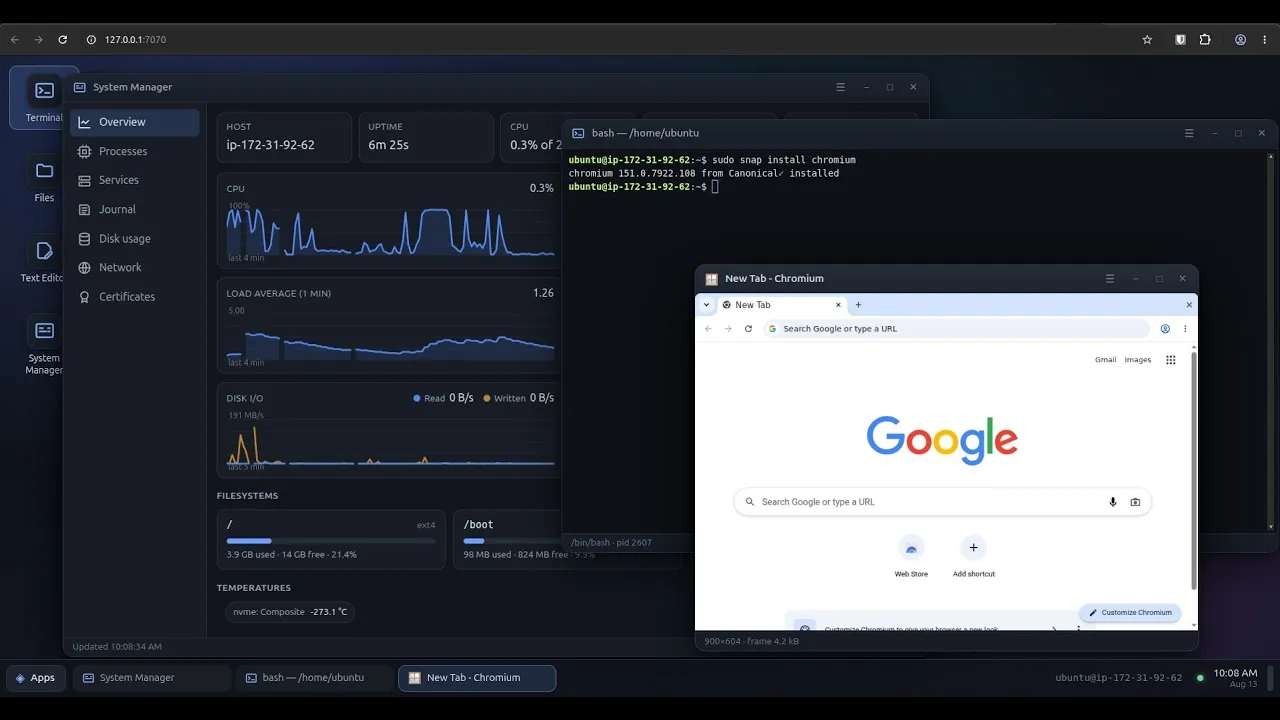
In this video, we are going to talk about why this project exists, how to install it, and the main features of this new web desktop environment. Video here:
Finestra — A fully web-based desktop environment
Why a video and not more screenshots
The screenshot on the front page shows the real system, but the apps shown are in a still image is just a rectangle with a border. What it cannot show is what it is like to use: a full terminal to install or run CLI tools, uploading and downloading files to your machine, browsing local files, editing config files — and installing and running a snap app with a graphical interface! Snaps are still experimental, but simple ones work.
What you are looking at
A headless Linux server: a standard t3.medium instance type running on AWS with Ubuntu 26.04. Interesting facts:
- Running in a region located more than 8,000 kilometers (5,000 miles) from my local PC
- No display attached
- No desktop installed on it
- Nothing new listening on the network
The desktop is drawn in a browser tab on the other end of an SSH tunnel you already had open.
A few things worth knowing:
- The terminal is a real PTY on the host, not a shim that shells out per command. It behaves like the terminal you would have had over SSH, because it is one.
- The system manager reads
/procandjournalctllive, rather than polling an agent that keeps its own copy of the truth. - The GUI applications are ordinary Linux applications, installed from your distribution’s packages, drawn on the server by a Wayland compositor written for this and composited into the page.
Trying it
On the server, over SSH:
curl -fsSL https://finestra.dev/get.sh | sudo bashIt checks the download against its published SHA-256, carries its own Node runtime, and asks one question: who the desktop runs as. Then forward the port over the SSH you are already in:
ssh -L 7070:127.0.0.1:7070 you@serverIf you would rather know what it does before running it — reasonable, given it is a root-capable shell onto your own box — What Finestra is covers the shape of it, and the source is on GitHub.
More videos on the channel.